Teams
A team is a subdivision of your organization — the primary unit for budget, rate limits, model access, and membership. Team spend rolls up to the organization, and members can belong to more than one team.
Open Teams in the sidebar (under Account). You see the teams in your active organization.
Teams belong to your active organization. The list is automatically scoped to it — use Switch Organization to work in a different organization. Organization administrators can create and delete teams; team administrators can manage the teams they admin.
The teams list
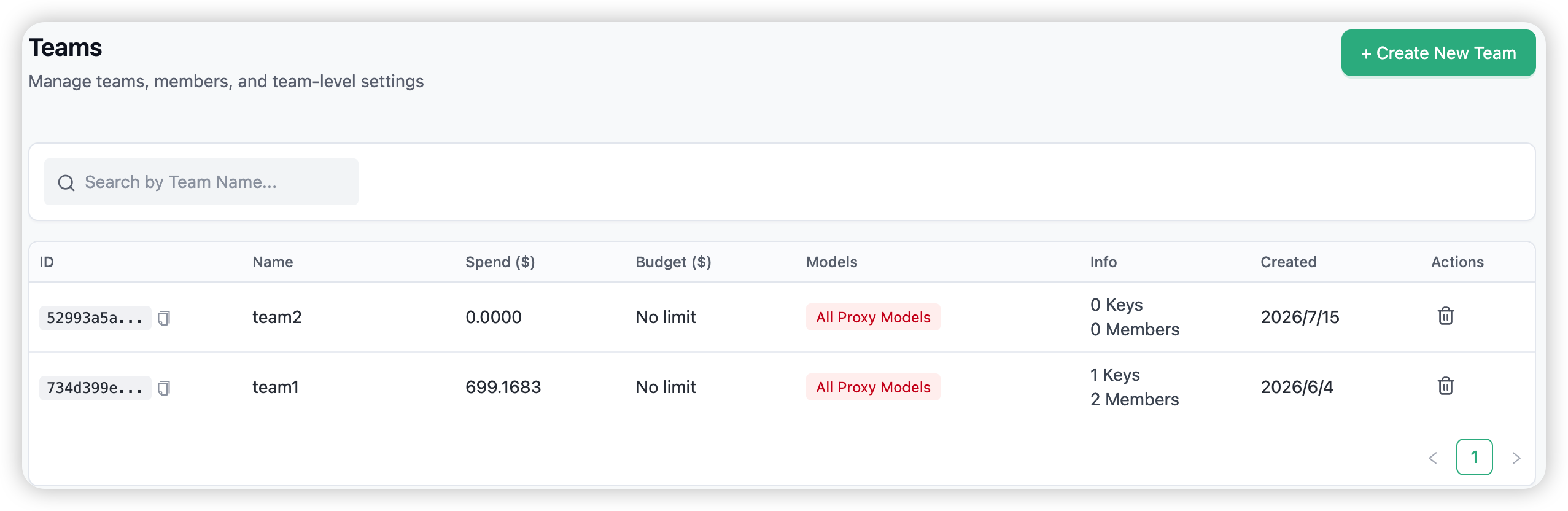
The table shows each team’s ID, name, spend, budget, model list, key and member counts, and creation date. Click a row to open a team’s detail. Use + Create New Team to add a team (organization admins only).
Creating a team
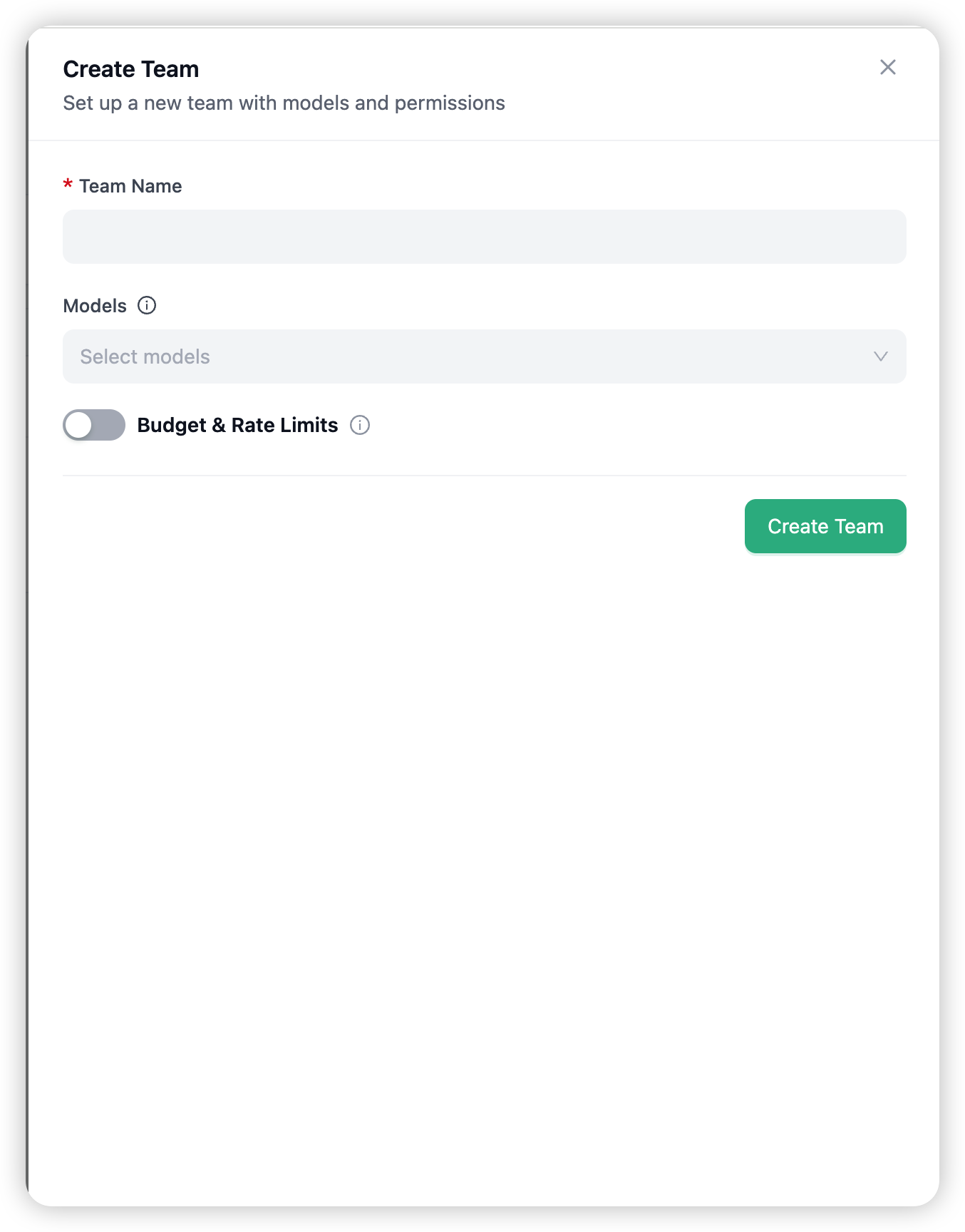
The Create Team drawer takes:
- Team Name — a label for the team.
- Models — the models the team can use. Leave it open to allow all models available to the organization.
- Budget & Rate Limits (optional) — a max budget and soft-alert budget, a reset cadence (daily, weekly, or monthly), and TPM / RPM / parallel-request limits.
The team is created in your active organization automatically.
Team detail
Clicking a team opens its detail with three tabs:
Overview
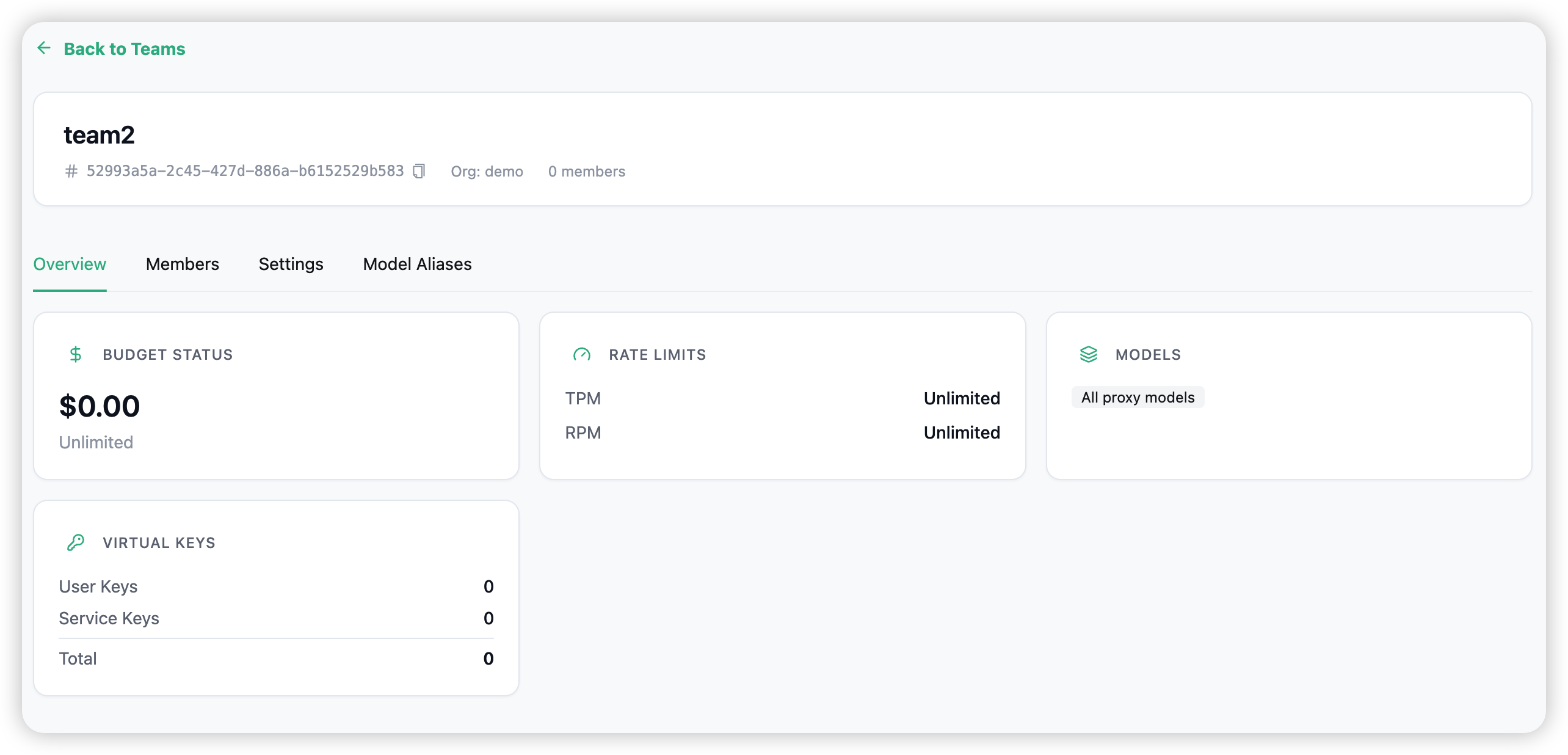
The team at a glance: a budget status card (spend against the limit, with a progress bar and reset cadence), rate limits, the model list, and virtual-key counts.
Members
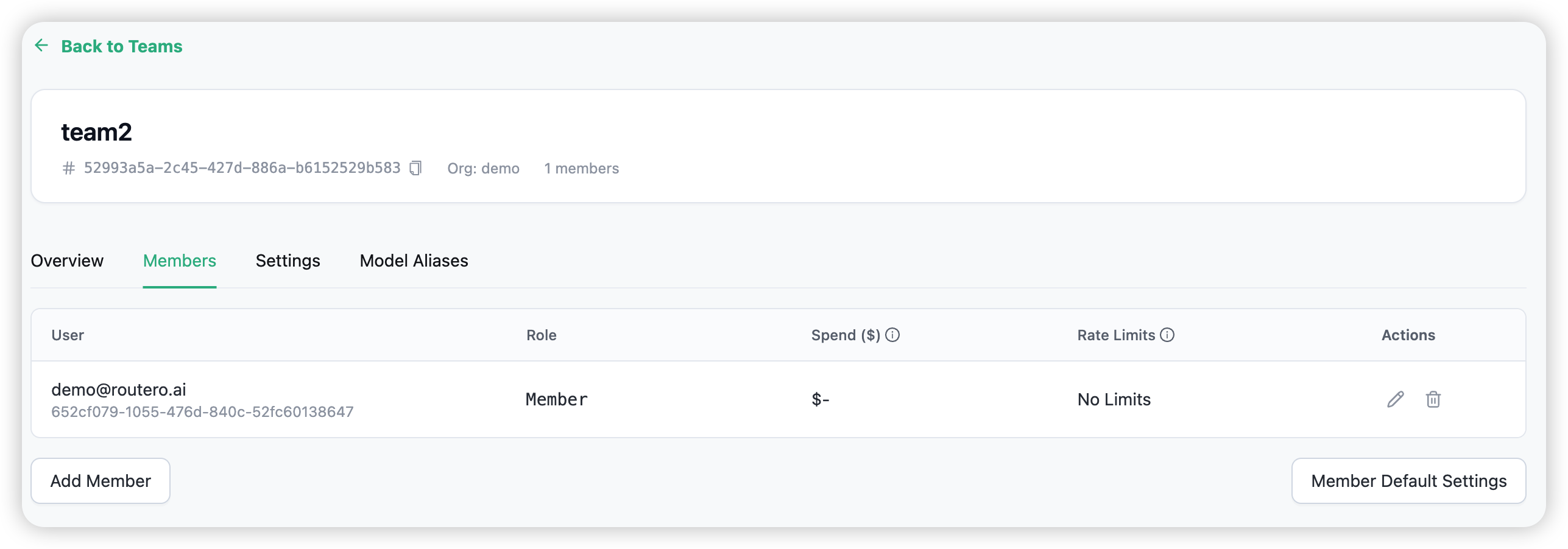
The people in the team. Add a member by searching their email or user ID and assigning a role; edit a member’s role or set per-member budget and rate limits; remove a member. See Team roles below.
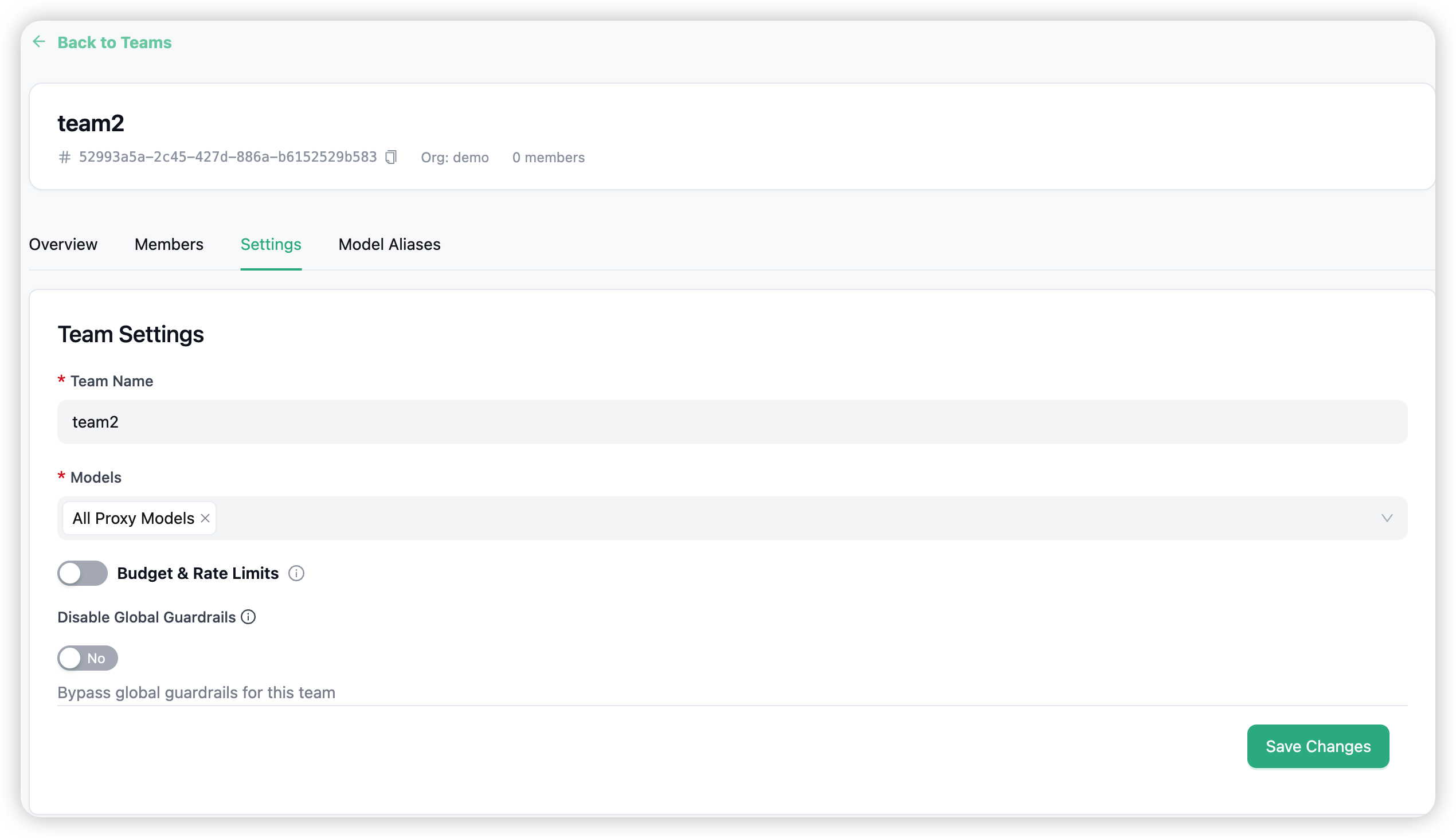
Settings
Rename the team, change model access, adjust budget and rate limits, and configure advanced options such as guardrails and MCP/agent permissions.
Team roles
A team has two roles:
| Role | What they can do |
|---|---|
| Admin | Create team keys, add and remove members, and manage team settings. |
| Member | Use the team’s keys and models, and view team info — but not manage it. |
New members default to Member; promote someone to Admin when they should help run the team.
Creating or deleting a team is an organization-admin action. Team administrators can manage their team’s settings and members, but only an organization admin can create or remove teams.
Budgets and spend
A team’s budget and rate limits are set when you create or edit it. Spend is tracked against the budget and resets on the cadence you choose (daily, weekly, monthly). Team spend also rolls up into your organization’s totals — see Budget Limits.
Related
→ Members for adding people to your organization before adding them to teams. → Organizations for switching organization context. → Budget Limits.