Organizations
Your organization is your Routero workspace — the isolation boundary for your members, teams, keys, models, spend, and audit log. As a tenant you don’t get a system-wide organization console; you switch and manage your organization from the user menu at the bottom of the sidebar.
You belong to one or more organizations. Each user also has a personal organization for private keys and experiments, separate from any shared team workspace.
The user menu
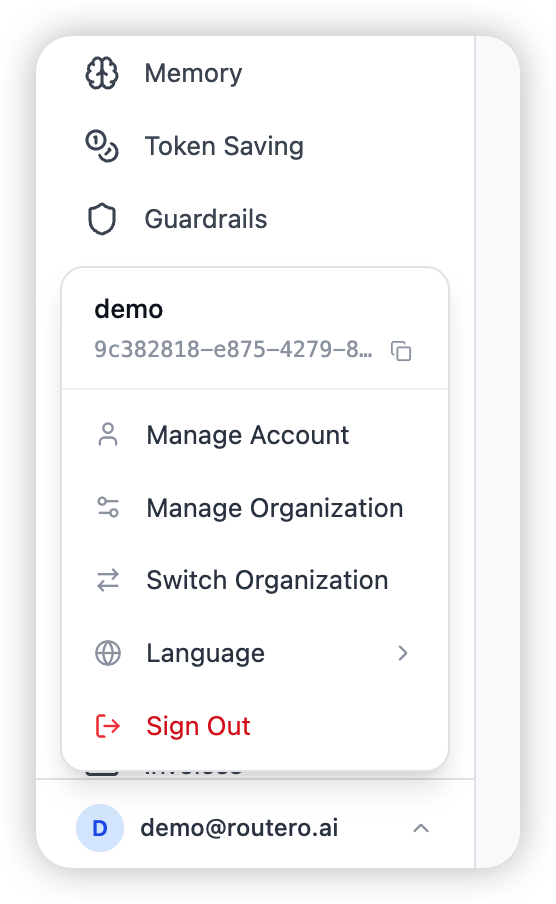
Open the user menu at the bottom of the sidebar (your avatar or initial). It shows your current organization and gives the two organization actions a tenant uses:
- Switch Organization — change which organization you are working in.
- Manage Organization — view your organization and manage its members and invitations (organization admins only).
Switching organizations
Choose Switch Organization to open the switcher. It lists every organization you belong to — your personal organization first, then shared organizations alphabetically. The organization you are currently in is badged Active.
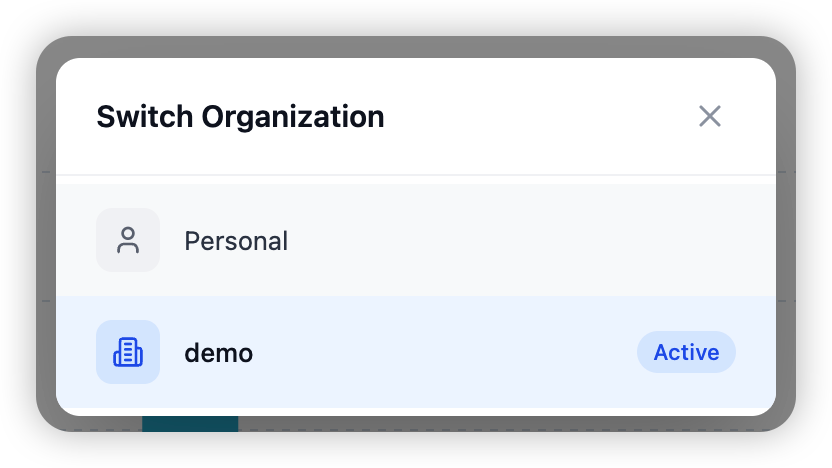
Click an organization to switch into it. The dashboard reloads in that organization’s context, and everything you see from then on — teams, members, keys, usage, spend — is scoped to it.
If you belong to only one organization, the switcher still opens but shows just that one. Switching is only meaningful for users with access to multiple organizations.
Managing your organization
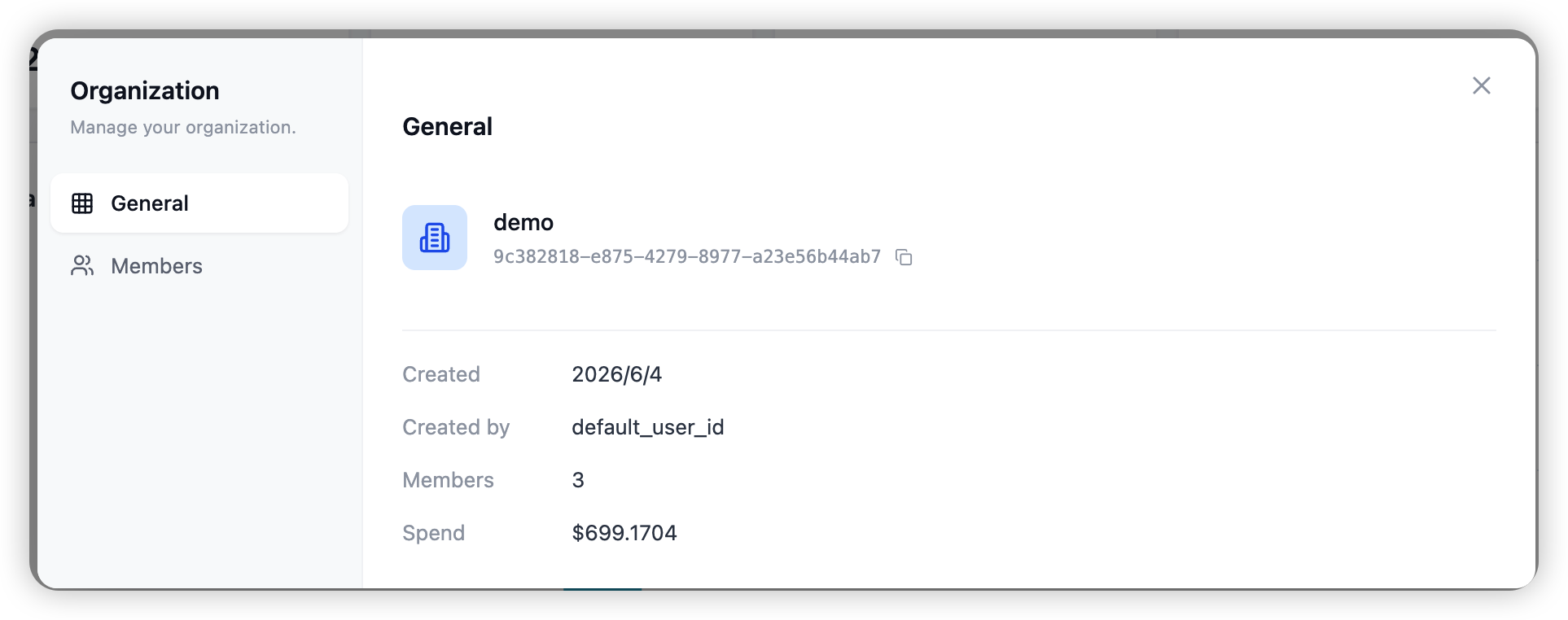
Organization admins see Manage Organization in the user menu. It opens a window with two tabs: General and Members.
General
A read-only summary of your organization: its name, the organization ID (copy it to reference the org elsewhere), when it was created and by whom, the current member count, and total spend.
Members
A focused view of who is in the organization. You can search members, change a member’s organization role inline, remove a member, or invite a new one by email. Pending invitations are listed under the Invitations sub-tab, where you can copy or revoke an invitation link.
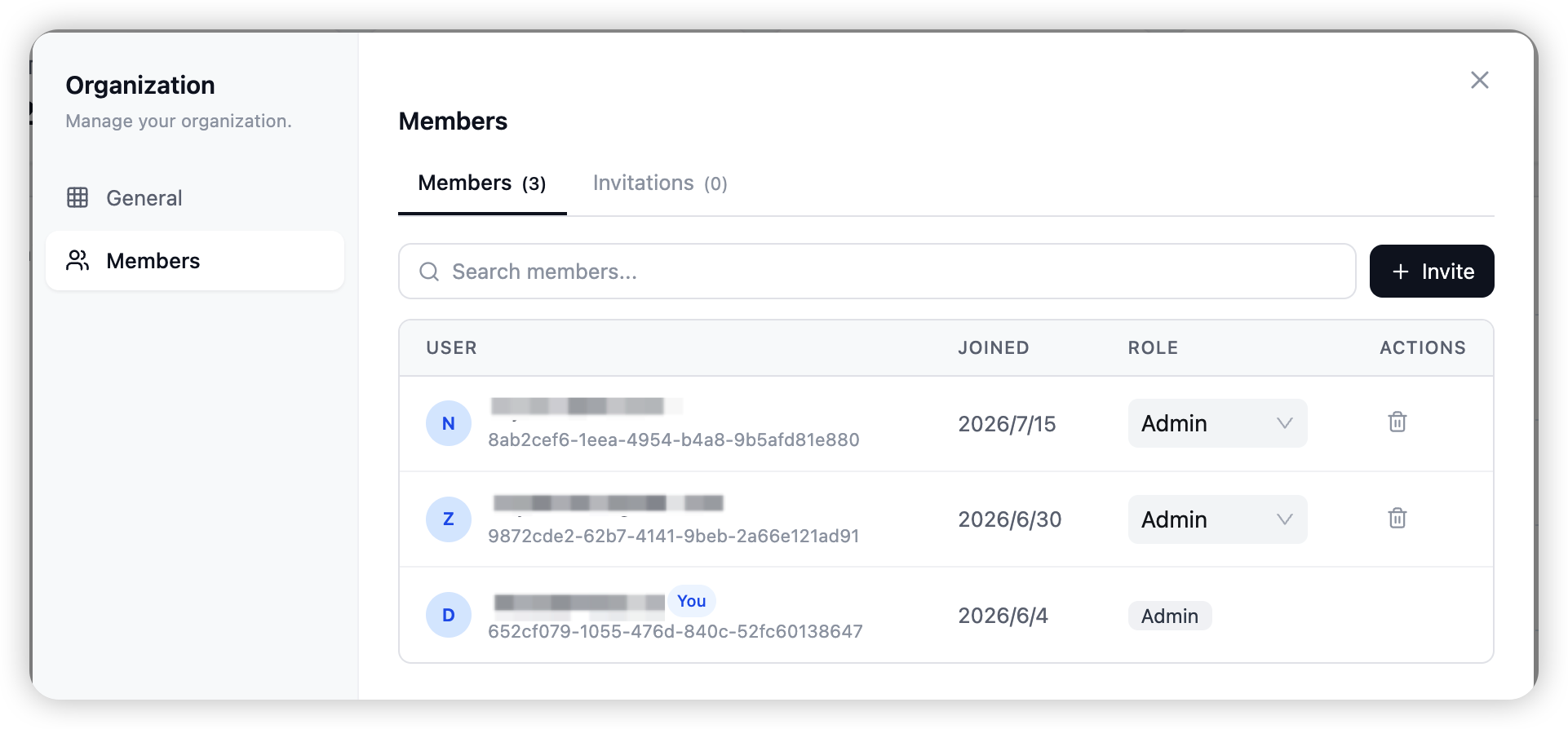
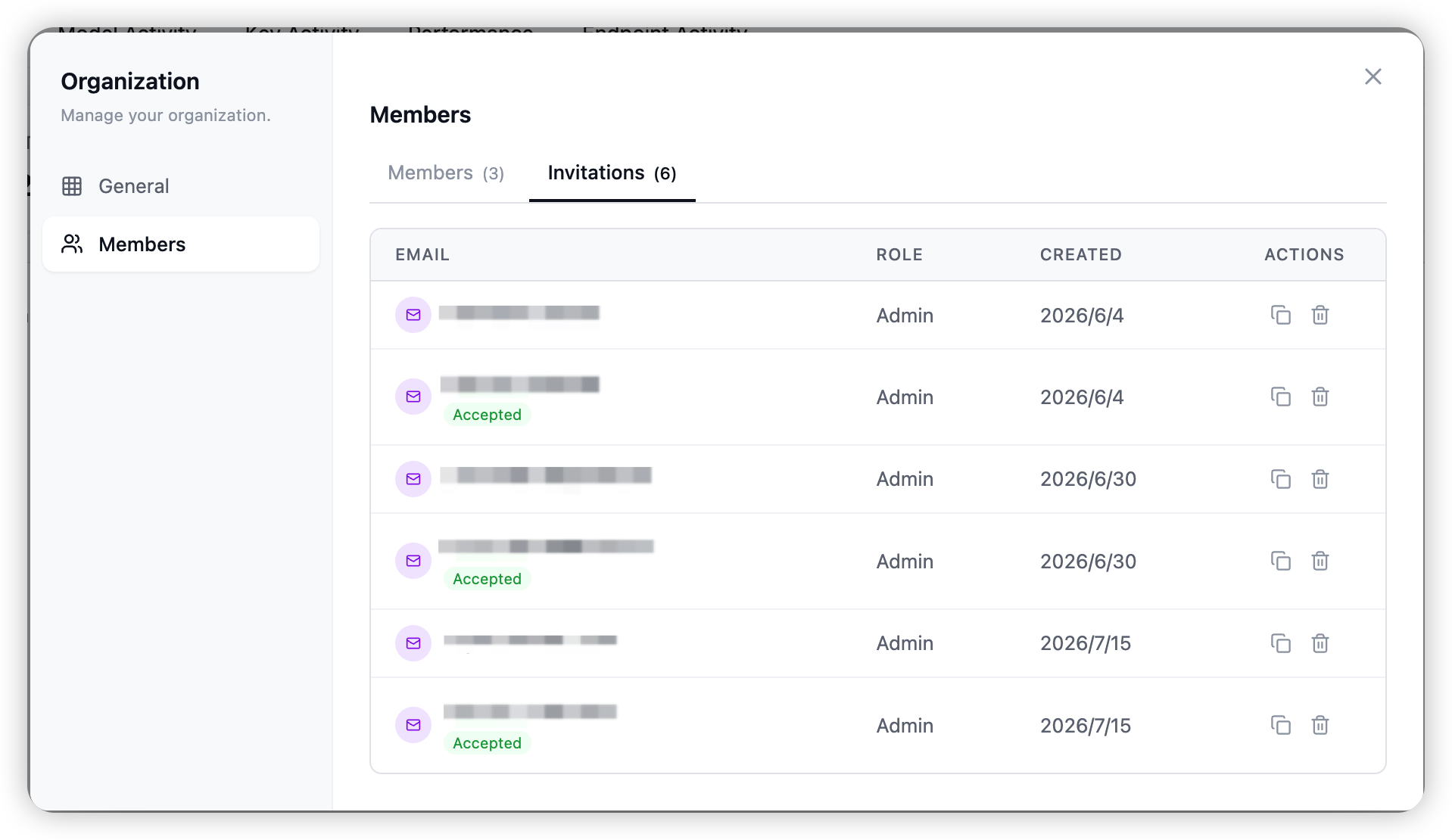
This is the quick path for membership. For the full member-management workflow — the members list, the invitation flow, roles, and per-member detail — see Members.
What an organization admin can and cannot do
Can — manage members and invitations, create and manage teams, manage models and keys, set budgets, and configure the AI capabilities, all within the organization.
Cannot — create or delete organizations, change the organization owner, or view data belonging to another organization. Those are platform-admin actions. If you need a new organization (for example, a separate business unit or customer workspace), ask your platform admin to create it and make you an administrator of it.
Related
→ Members for the full member and invitation workflow. → Teams for subdividing your organization.