Web Search
Web Search lets a plain chat request search the web before the model answers. The gateway runs the search, injects the results into the conversation as reference material, and the model answers with current information — no function calling, no tool-use loop, no SDK upgrade. It works with every model, including the many models that have no built-in search of their own.
A web search tool is the right tool when answers must reflect what is true now — news, prices, release notes, documentation that changes. For stable, internal reference material, use a Knowledge Base; the two compose on the same request.
How it works
A web search tool runs in one of three search modes:
| Mode | Behaviour |
|---|---|
| Provider’s search when available, otherwise Routero’s (default) | Models with built-in provider search use it; every other model falls back to the Routero search engine. The only mode that behaves correctly across a mixed model fleet without you tracking which model supports what. |
| Provider’s search only | Uses the model vendor’s own search; models without it are simply not searched — the request still succeeds normally. |
| Always Routero’s search | Every request uses the Routero search engine, even on models that have their own. For uniform behaviour, or when you would rather your queries not reach the model vendor. |
The provider-side path (first two modes) turns on the vendor’s built-in search — the same native capability you would otherwise configure per-provider — driven by the tool’s search depth and domain filters. Citations come back in the provider’s own format.
The Routero engine path works on any model. On each request:
- The gateway derives a query from the most recent user turns of the conversation.
- It runs the query against the platform’s search engine and takes the top results (up to five).
- The results are injected into the last user message as a clearly-labelled block of reference material, not instructions — each result as a markdown link with its snippet — the same anti-prompt-injection framing the Knowledge Base uses.
- If the search returns nothing, the request proceeds unchanged.
Web search is fail-open: a failing or unavailable search backend never breaks the chat request — it goes through without search context. The web search hook runs last among the AI-capability hooks, after knowledge context is injected:
GuardrailHook → PromptHook → TokenSavingPlanHook → MemoryHook → KnowledgeHook → WebSearchHook
Which models search natively
Provider-side search is a property of the individual model, not of the vendor as a whole — at request time the gateway checks the requested model against its model catalogue, and a model without the capability falls back to the Routero engine (or skips search in native-only mode). Model families that currently include search-capable models:
| Provider | Families |
|---|---|
| OpenAI | GPT‑4.1, the GPT‑5 family, o3 / o4‑mini, and the dedicated *-search variants |
| Anthropic | Claude |
| Gemini | |
| xAI | Grok |
| Alibaba DashScope | Qwen |
| Zhipu AI / Z.ai | GLM |
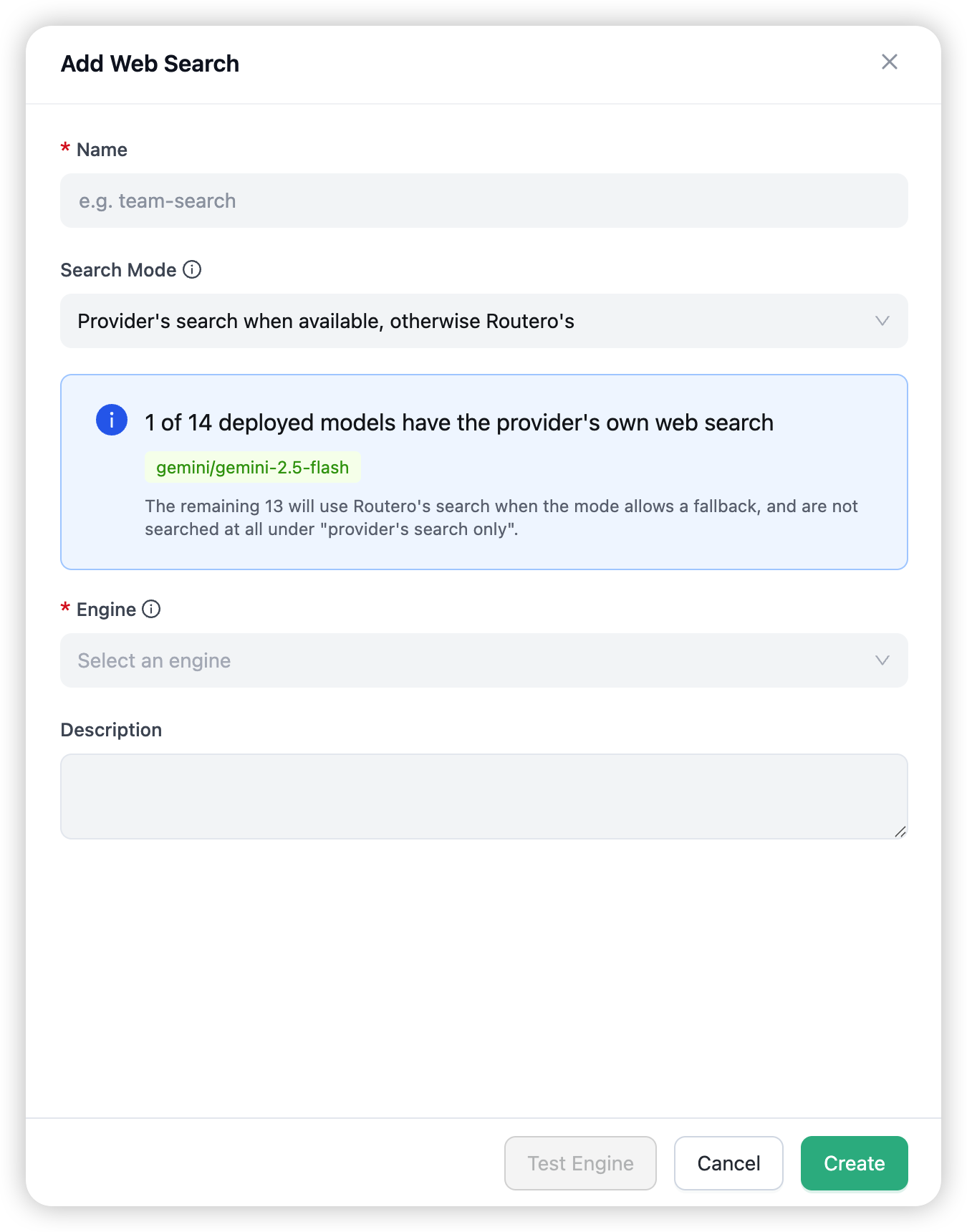
Not every model in these families necessarily has built-in search, and the catalogue evolves as providers release models — you don’t have to track it yourself. The Add Web Search form shows how many of your deployed models have provider-side search and lists them by name, so you know what the fallback mode would actually do. On the China deployment there is no gateway engine, so only models with built-in search are searched — see Region availability.
Search depth and domain filters
Two settings shape provider-side search:
- Search depth (
low/medium/high) — how much search context the provider gathers per query. More depth means better-grounded answers at a higher per-query cost. - Domain filters — restrict search to only the listed domains, or exclude the listed domains. Providers differ in how well they honour filters (some accept a single domain only); a filter a provider does not support is dropped silently, never an error.
Which fields you see depends on the search engine you pick: fields are rendered from the engine’s own declared capabilities, so an engine that cannot honour a setting does not show it.
Activation
response = client.chat.completions.create(
    model="openai/gpt-5.5",
    messages=[{"role": "user", "content": "What changed in the EU AI Act this month?"}],
    extra_body={"web_search_id": "web-current-events"},
)
Pass web_search_id top-level or inside metadata. The ID is stripped before the request is forwarded. A web search tool can also be bound through a policy so it activates automatically on a key or model — the recommended pattern, since callers then need no changes at all — and an explicit web_search_id on the request still wins.
Whether and how widely to search is an organisation decision, not a caller’s. A web_search_options parameter passed in the request body is ignored on every request, bound or not — search costs money per query, so it is governed by the tool configuration here, the same way token-saving plans govern caching.
In the Playground, pick a web search tool in the request settings to try live, searched answers.
Creating a web search tool
Open AI Capabilities → Web Search and choose Add Web Search. The form takes:
- Name — unique within your organisation (letters, digits,
-,_). - Search mode — one of the three modes above. The form also shows how many of your deployed models have provider-side search, so you know what the fallback mode would actually do.
- Engine — the platform’s search backend, selected from the region’s engine catalogue (for example general web search, or a Wikipedia-only engine for definitional queries). Engines that need settings show them as additional fields.
- Search depth and domain filters — when the engine supports them.
- Description — optional.
- Test Engine — runs a live query against the selected engine and shows how many results came back, before you save.
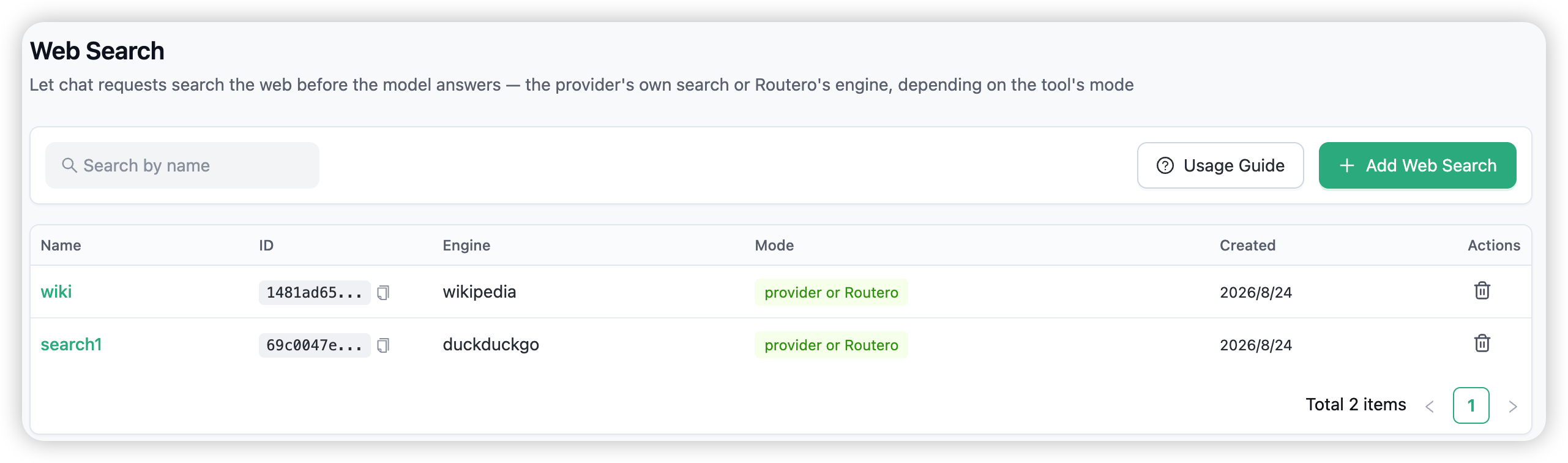
Click a tool’s name to inspect its effective configuration — mode, engine, and the settings that would apply to provider-side search.
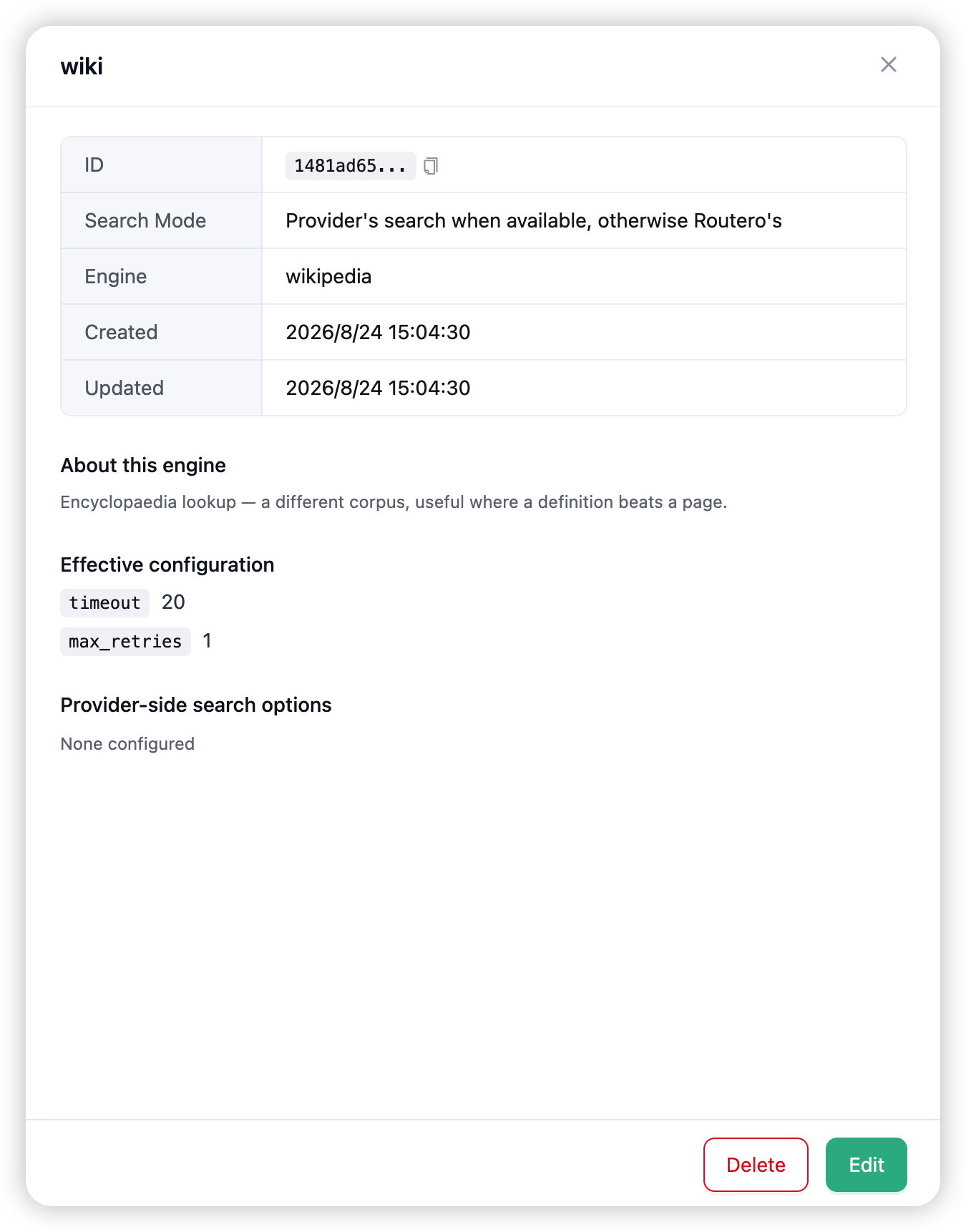
Deleting a tool stops the searching, nothing else. Policies that referenced it keep working — a dangling binding is a silent no-op, not an error. The delete dialog says the same thing.
Region availability
On the China deployment, the Routero search engine is not offered; web search there runs on provider-side search only (for example the DashScope and Zhipu model families with built-in search). The dashboard shows a warning when no gateway engine is available in your region, and the engine picker reflects what your region actually offers.
Cost and observability
- Provider-side search is billed by the provider per query, at the depth you configured; the charge appears in your normal spend views.
- The Routero engine carries no per-query fee — its cost shows up as the additional prompt tokens of the injected results block (bounded at five results) and a little added latency.
- What a successful search looks like in the logs. In the request’s detail drawer, the metadata shows which web search tool ran (
web_search_id) and which path served it (web_search_mode:nativefor provider-side search,third_partyfor the Routero engine). Engine-path requests also recordweb_search_results_injected— the number of results added — and the injected reference block is visible in the logged request messages; native-path requests return the provider’s own citations in the response. - Every request that skips searching records why (no query, no results, model without native search, backend error) in the request’s metadata, so you can tell “searched and found nothing” apart from “never searched” in the logs.
Organisation isolation and permissions
- Org-scoped. Web search tools belong to one organisation and are only visible to it.
- Who can manage. Organisation admins create, edit, and delete web search tools. Regular members can view them.
Combining with the rest of the gateway
- Policies — bind a web search tool into a policy to activate it automatically on a key or model; callers need zero changes.
- Knowledge Base / memory / prompts / guardrails / token saving — the other AI Capabilities apply to the same request in their normal order; guardrails inspect the caller’s raw input before any search context is added, and knowledge context is injected before the search query is derived.
- Playground — pick a web search tool in the request settings to test searched answers live.
→ Policies for binding web search to keys and models.