Budget Limits
A budget caps what an entity can spend. You set budgets on virtual keys, teams, and organisations — there is no separate “budgets” page; each entity carries its own Budget & Rate Limits section, and spend is tracked against it.
How enforcement works
When a request would push an entity over its limit:
- Max Budget (hard limit) — once spend reaches the max budget, further requests are blocked.
- Soft Budget — a non-blocking threshold; crossing it sends an alert but does not stop requests.
- 80% threshold — approaching the max budget (around 80%) also sends a non-blocking alert.
Alerts are delivered by email. A budget either alerts or blocks — there is no throttle tier in between.
Configuring where alerts are sent (for example a Slack channel) is a platform-level setting managed by your administrator, not a per-budget option.
Setting a budget
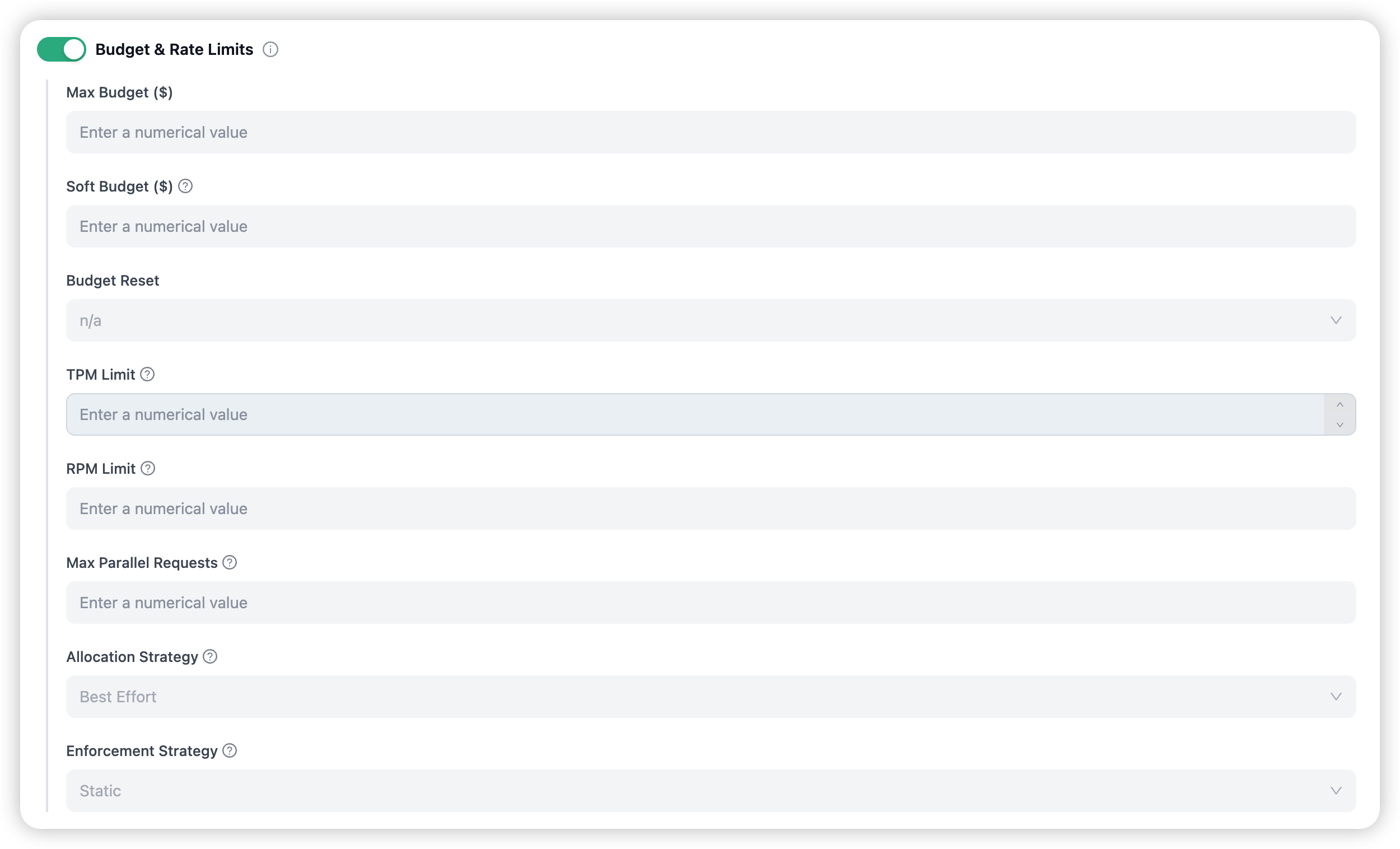
On a key, team, or organisation, open its settings and turn on Budget & Rate Limits. The fields:
| Field | What it does |
|---|---|
| Max Budget | Hard spend ceiling. Spend past this is blocked. |
| Soft Budget | Non-blocking alert threshold. |
| Budget Reset | When the spend window resets — daily, weekly, or monthly. |
| TPM Limit | Maximum tokens per minute. |
| RPM Limit | Maximum requests per minute. |
| Max Parallel Requests | Cap on concurrent in-flight requests. |
| Allocation Strategy | How child limits relate to the parent (Best Effort / Guaranteed) — keys and teams. |
| Enforcement Strategy | Always enforced (Static) or only on upstream failures (Dynamic). |
Watching spend against a budget
You do not need a separate budgets view — spend against the limit surfaces where the entity lives:
- The Virtual Keys and Teams lists show Spend, Budget, and Budget Reset columns.
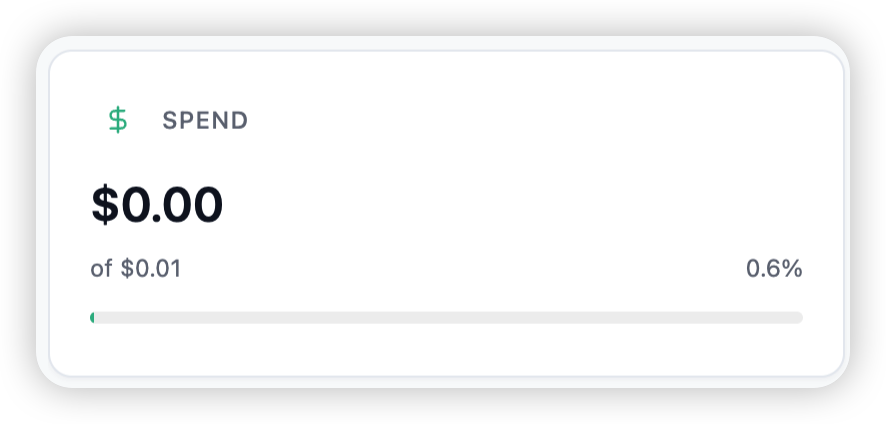
- A key or team’s Overview shows spend against the max budget with a progress bar and percentage used (or “Unlimited” when no max is set).
For the full spend picture across the organisation, see Usage.
Related
→ Usage for organisation-wide spend analytics. → Logs for per-request detail.