Knowledge Base
Knowledge Base gives your applications grounded answers from your own documents. Upload files in the dashboard; Routero parses them, splits them into chunks, embeds them, and indexes them. On every request that references the knowledge base, the relevant passages are retrieved and injected into the prompt — no vector store to operate, no RAG pipeline to build.
A knowledge base is the right tool for shared, relatively stable reference material — product handbooks, policies, FAQs, technical specs. For per-user facts and conversation history, use Memory-as-a-Service; the two compose on the same request.
How it works
Ingestion (dashboard). When you upload a document, it goes through four stages, each visible in the document list:
Pending → Parsing → Embedding → Ready (or Failed)
- Parsing — the file is converted to Markdown (PDF text, Office documents, plain text).
- Chunking — the Markdown is split along its headings, so a chunk never spans two sections and tables stay whole. Every chunk carries its heading path (for example
Handbook > Security > Keys). - Embedding & indexing — the platform’s internal embedding service converts each chunk to a vector and indexes it. No model spend lands on your keys, and no content is sent to an external provider.
Uploading the same file twice is a no-op — documents are deduplicated by content hash. A document that failed can be uploaded again (or re-indexed) for another attempt.
Retrieval (request time). With the default Automatic retrieval mode, on every request that references the knowledge base:
- The gateway builds a query from the last few user turns of the conversation.
- It searches the knowledge base for the most similar chunks (top 5 by default, above a similarity threshold).
- Matching passages are inserted into the last user message, prefixed with a header that tells the model to treat them as reference data, not instructions — a guard against prompt injection from document content.
- If nothing scores above the threshold, the request proceeds unchanged — retrieval simply skips.
Retrieval is fail-open: if anything goes wrong, the request still goes through without knowledge context. Only one knowledge base can be referenced per request.
The knowledge hook runs late among the AI-capability hooks, after memory context is injected and before web search:
GuardrailHook → PromptHook → TokenSavingPlanHook → MemoryHook → KnowledgeHook → WebSearchHook
Supported documents
| Type | Handled as |
|---|---|
| Markdown, plain text, CSV, JSON | Parsed as-is |
| PDF with a text layer | Text extracted with layout awareness; complex tables may be flattened |
Word, Excel, PowerPoint (.docx/.xlsx/.pptx, legacy .doc/.xls/.ppt) |
Converted to Markdown |
Scanned PDFs are not supported — a PDF without a text layer fails with a clear error (OCR is not enabled). Re-upload a text-based export instead.
Limits: 32 MB per file and 500 pages per document. Documents that exceed them fail with an explicit message.
Activation
response = client.chat.completions.create(
    model="openai/gpt-5.5",
    messages=[{"role": "user", "content": "What is our refund policy for annual plans?"}],
    extra_body={"knowledge_base_id": "product-handbook"},
)
Pass knowledge_base_id top-level or inside metadata. The ID is stripped before the request is forwarded. A knowledge base can also be bound through a policy so it activates automatically on a key or model — an explicit knowledge_base_id on the request still wins.
In the Playground, pick a knowledge base under Advanced Settings to try retrieval against a live model.
Creating a knowledge base
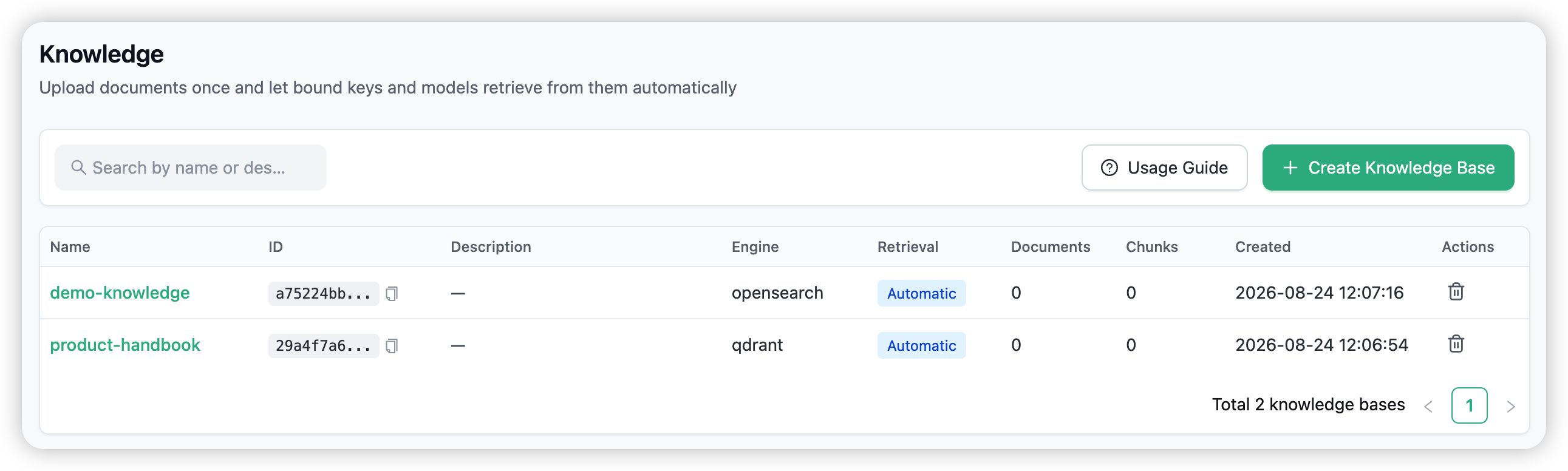
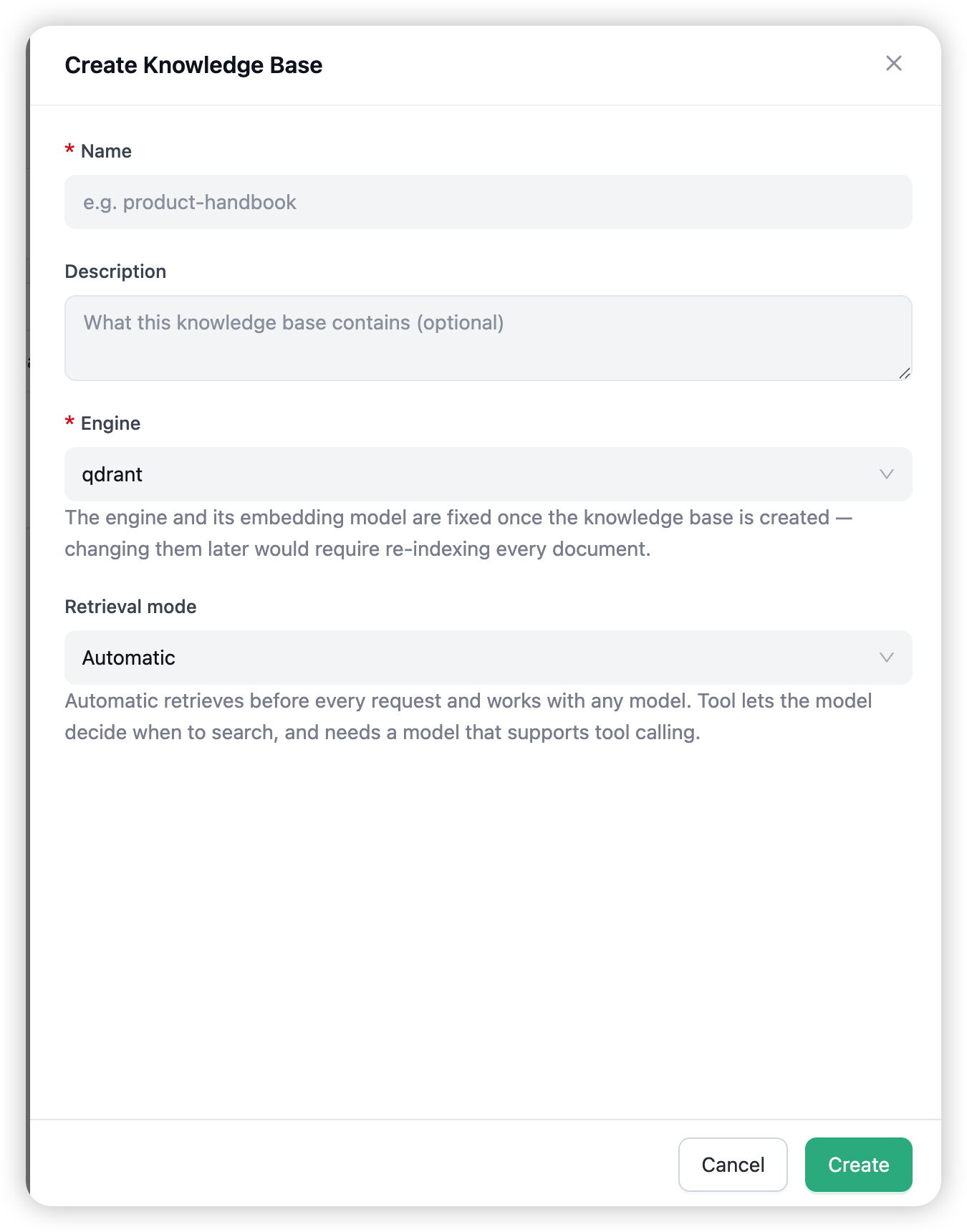
Open AI Capabilities → Knowledge and choose Create Knowledge Base. The form takes:
- Name — unique within your organisation (e.g.
product-handbook). - Description — optional.
- Engine — the platform’s vector index. The default works for every use case.
- Retrieval mode — Automatic (default) retrieves before every request and works with any model. Tool offers the model a search tool instead of retrieving up front, and requires a model with tool calling.
The engine and its embedding model are fixed at creation — changing them later would invalidate every indexed vector. To move to a different setup, create a new knowledge base and re-upload the documents.
Tool mode is experimental. Automatic retrieval is the supported path today; tool mode is not yet complete. Keep retrieval on Automatic for production traffic.
Managing documents
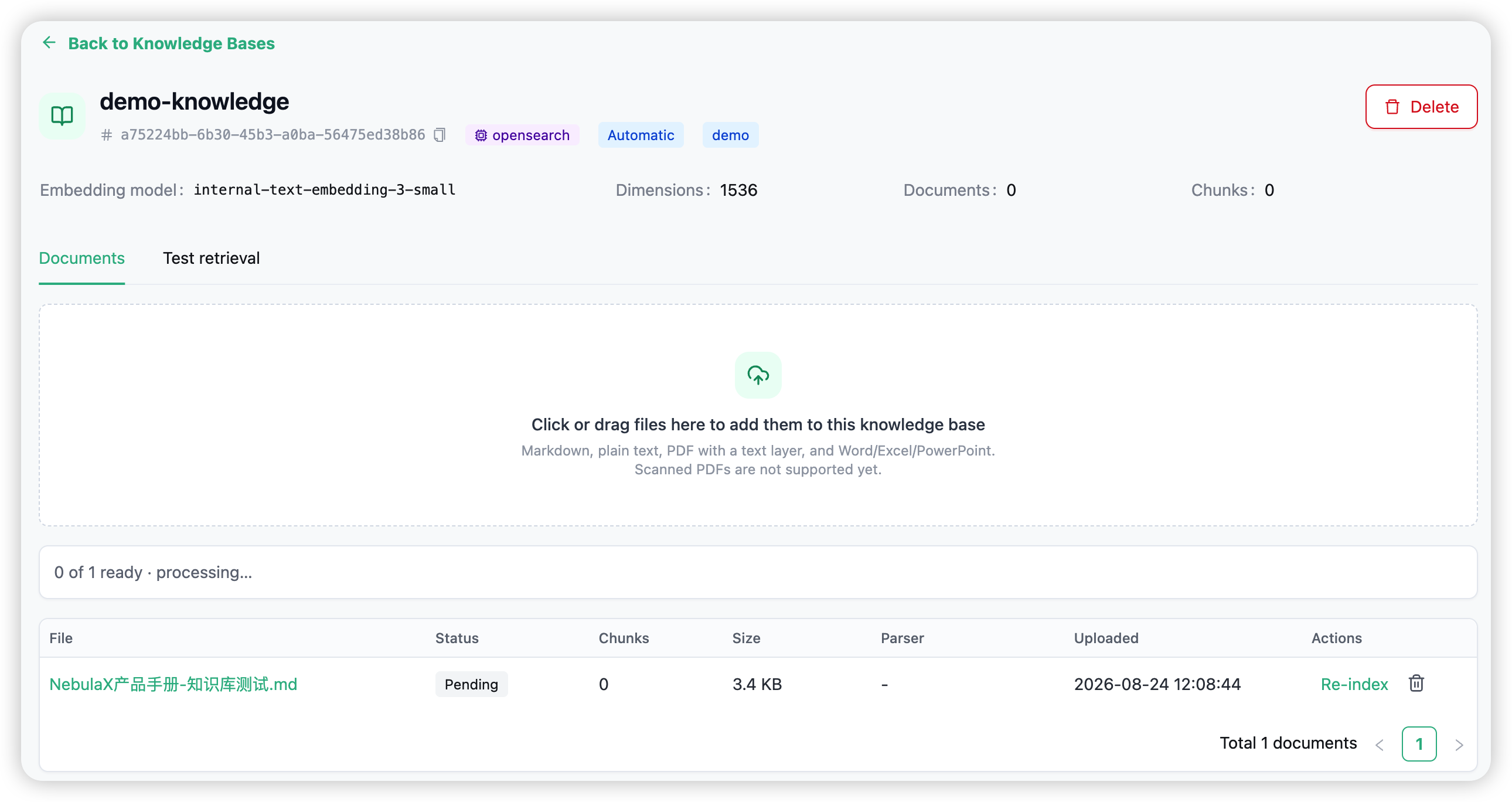
Open a knowledge base to see its detail view: the embedding model, dimensions, and running document and chunk counts, plus two tabs — Documents and Test retrieval.
The Documents tab is where the corpus lives:
- Upload — click or drag files; several at once. The list shows a live “x of y ready” counter and refreshes itself while documents are processing.
- Status per document — Ready / Pending / Parsing / Embedding / Failed, with the error shown on failure.
- Preview — click a file name to see the parsed Markdown exactly as it was indexed.
- Re-index — re-run indexing for one document (reusing its parsed Markdown).
- Delete — removes the document and all of its indexed chunks.
Testing retrieval
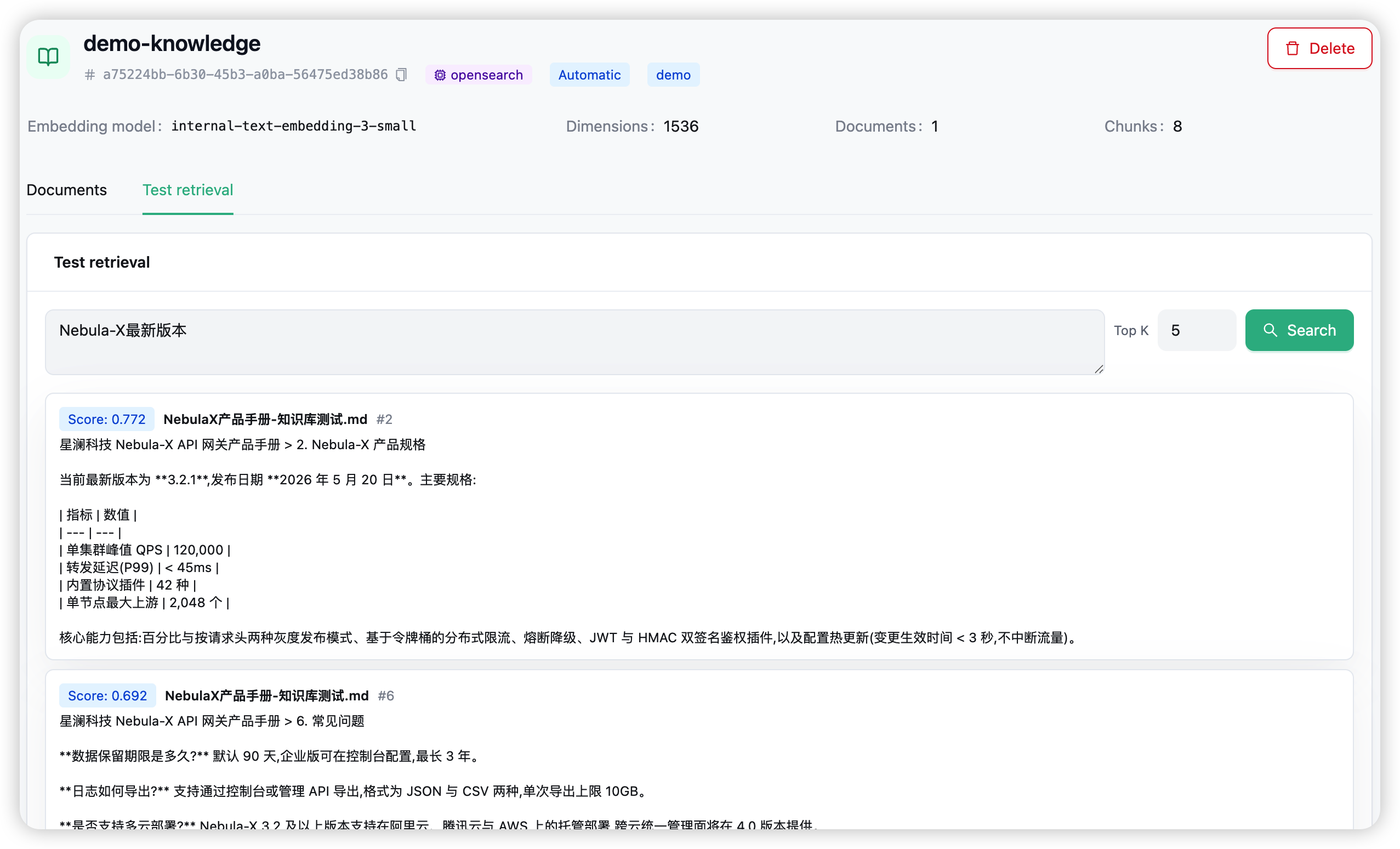
The Test retrieval tab runs the exact same search the gateway performs at request time. Type a question the way a user would, optionally change how many chunks to return, and search: you get each chunk with its similarity score, source file, and position — the passages that would be injected into the prompt. Queries that score below the threshold return nothing, which is exactly what the model would see.
Organisation isolation and permissions
- Org-scoped. Knowledge bases belong to one organisation; every indexed vector is tagged with it, and searches always filter to your organisation.
- Who can manage. Organisation admins create and delete knowledge bases, upload, re-index, and delete documents. Regular members can view the knowledge bases and run retrieval tests.
Combining with the rest of the gateway
- Policies — bind a knowledge base into a policy to activate it automatically on a key or model.
- Memory / prompts / guardrails / token saving — the other AI Capabilities apply to the same request in their normal order; guardrails still inspect the caller’s raw input before any knowledge context is added.
- Playground — pick a knowledge base under Advanced Settings to test grounded answers live.
→ Policies for binding knowledge bases to keys and models.