Members
Members are the people in your organization. Membership is invite-only — there is no self-signup. As an organization administrator you invite members, assign their roles, and manage their access.
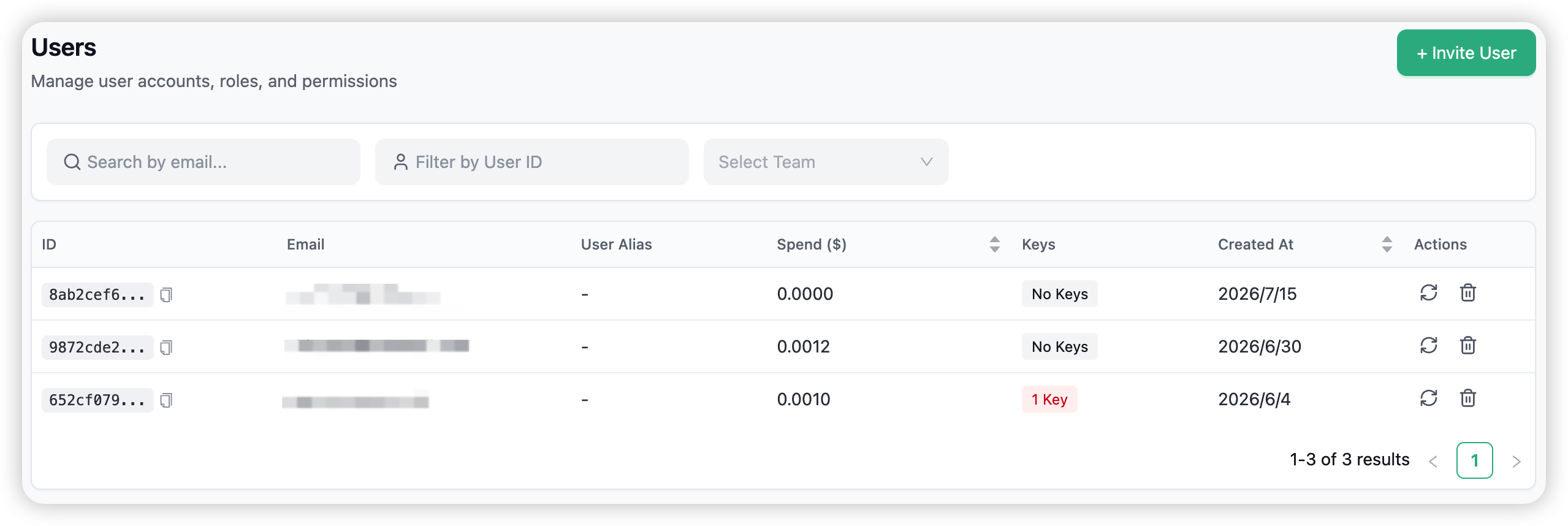
Open Users in the sidebar (under Account). The list is scoped to your active organization.
The list shows only the members of your active organization. Use Switch Organization to manage a different organization’s members.
The members list
The table shows each member’s email and alias, their spend, their key count, and when they joined. Click a row to open a member’s detail. Use + Invite User to add a member.
Inviting a member
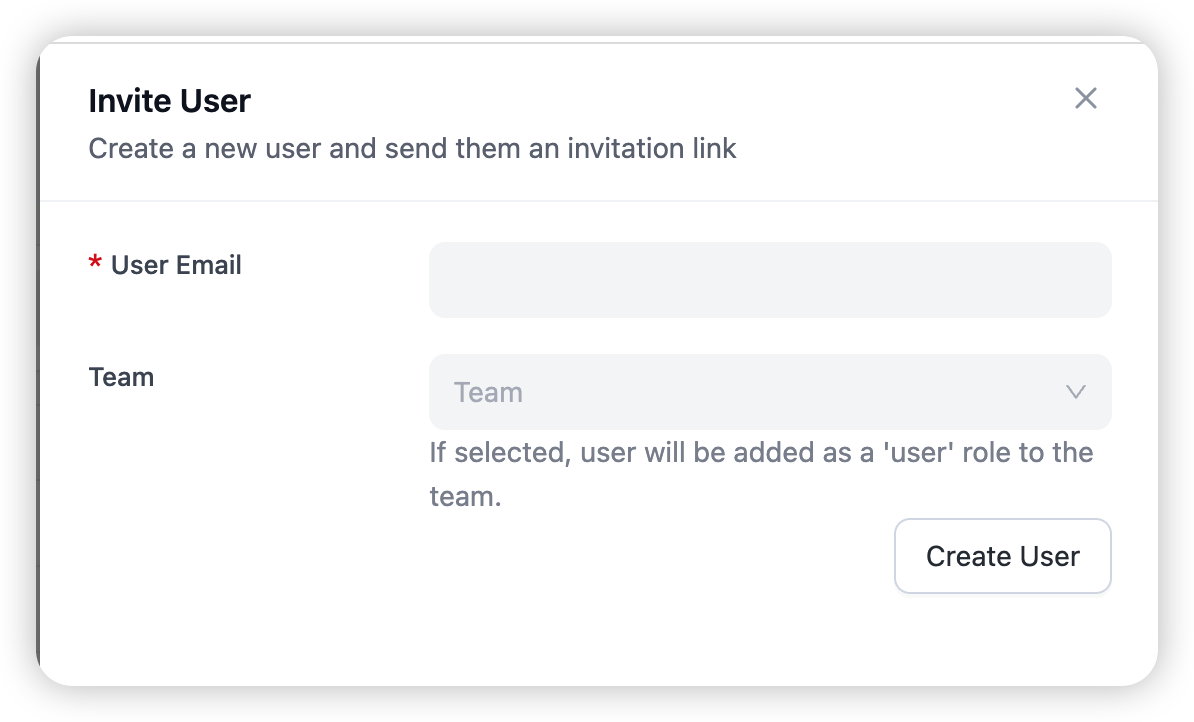
Choose + Invite User to open the invitation drawer. Enter the person’s email, pick a role, and optionally assign a starting team. On submit, Routero generates a single-use invitation link valid for 7 days — share it with the invitee. When they open it and set a password, they join your organization with the role you chose.
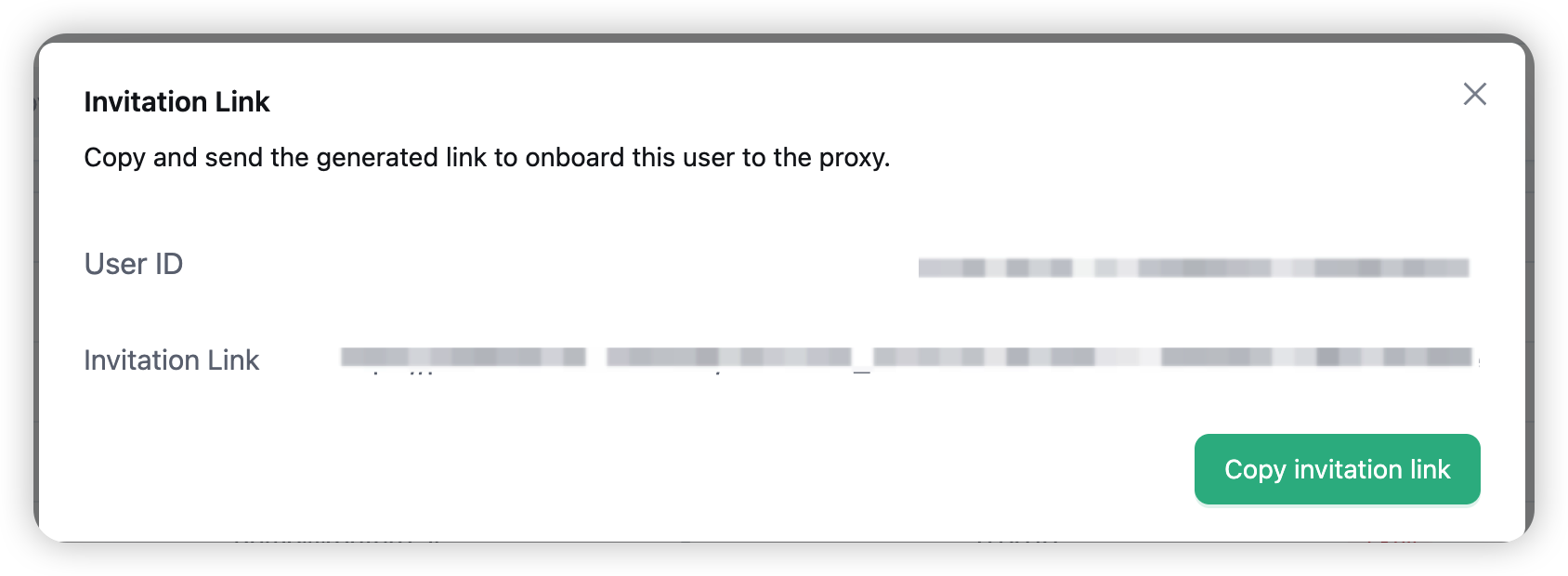
Pending invitations for your organization are also listed under Manage Organization → Invitations (see Organizations), where you can copy a link again or revoke it. An accepted invitation is badged accordingly.
Because signup is invite-only, the only way into your organization is through an invitation you send (or through single sign-on, if your platform is configured for it). There is no public registration page.
Roles
A member’s role decides what they can do across the organization:
| Role | What they can do |
|---|---|
| Admin (organization admin) | Everything: manage members and invitations, create and manage teams, manage models and keys, set budgets, configure AI capabilities. |
| Member (internal user) | Use the organization — call models, manage their own keys, use the playground — but not administer it. |
New members default to Member. Promote someone to Admin when they should help run the organization. You can change a member’s role at any time from their row or their detail view.
Managing a member
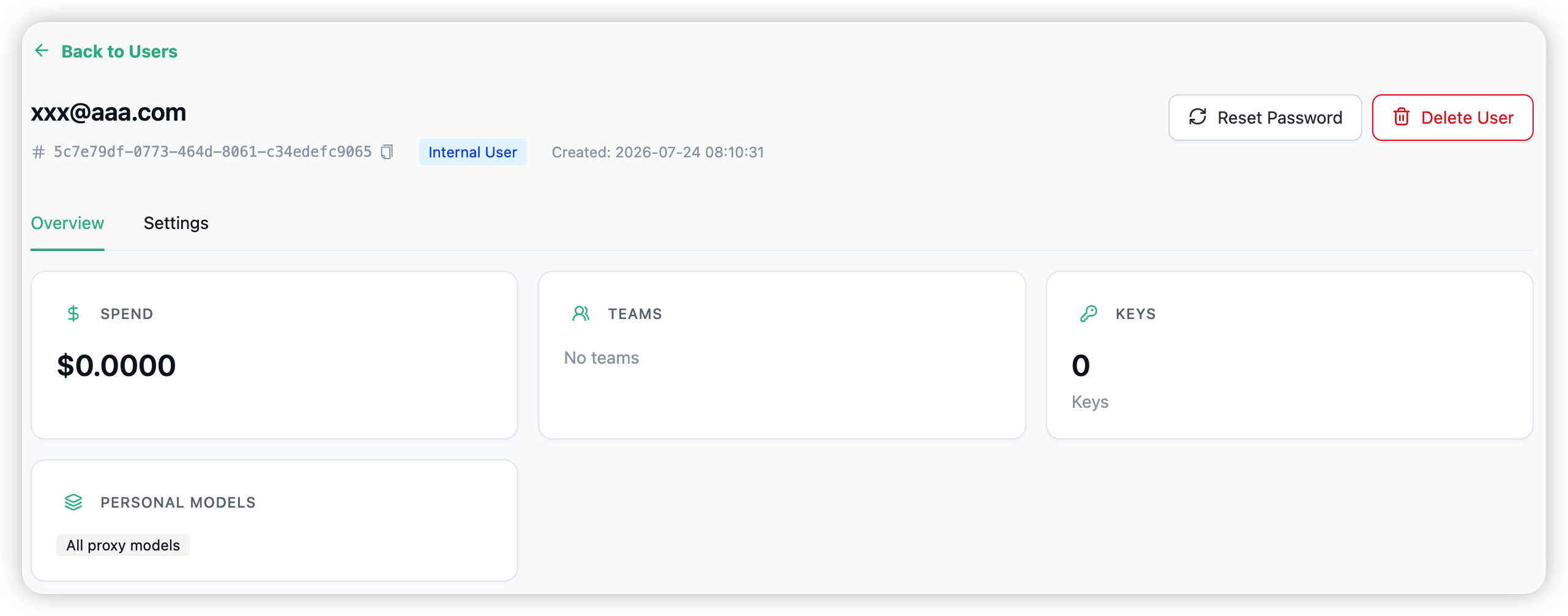
From a member’s detail you can see their spend, the teams they belong to, their keys, and their personal models. As an organization admin you can:
- Change role — promote to Admin or demote to Member.
- Remove from organization — revoke their membership in your organization. This does not delete the user globally; it just removes them from your org.
- Reset password — send the member a way back in if they lose access.
Removing a member from your organization does not delete their account — they may still belong to other organizations. Globally deleting a user is a platform-admin action.
Related
→ Organizations for the quick member tools in the Manage Organization window. → Teams for team-level membership and team roles.